Integration with Angular
This guide assumes familiarity with Angular concepts and patterns. For background, see the Angular documentation.
DHTMLX Kanban is compatible with Angular. The full code example is available on GitHub.
Create a project
Install Angular CLI and Node.js before creating the project.
The following command creates a new my-angular-kanban-app project with Angular CLI:
ng new my-angular-kanban-app
Disable Server-Side Rendering (SSR) and Static Site Generation (SSG/Prerendering) when prompted, so the project matches this guide.
The command installs all the necessary tools. No additional commands are required.
Install dependencies
Move into the new app directory:
cd my-angular-kanban-app
Install dependencies and start the dev server with the yarn package manager:
yarn
yarn start
The app runs on a localhost address (for example, http://localhost:3000).
Create Kanban
Stop the dev server and install the Kanban package.
Step 1. Install the package
Download the trial Kanban package and follow the steps in the README file. The trial version is available for 30 days.
Step 2. Create the component
Create an Angular component that mounts Kanban and the Toolbar. Create the src/app/kanban/ folder and add a kanban.component.ts file inside.
Import source files
Open kanban.component.ts and import the Kanban source files. The import path depends on the package version:
- For the PRO version installed from a local folder:
import { Kanban, Toolbar } from 'dhx-kanban-package';
- For the trial version:
import { Kanban, Toolbar } from '@dhx/trial-kanban';
This tutorial uses the trial version of Kanban.
Set up containers and initialize Kanban
To display Kanban with the Toolbar, set up two containers and call the constructors. The following code snippet defines the component template, references the containers, and creates the instances:
import { Kanban, Toolbar } from '@dhx/trial-kanban';
import { Component, ElementRef, OnInit, ViewChild, OnDestroy, ViewEncapsulation} from '@angular/core';

@Component({
    encapsulation: ViewEncapsulation.None,
    selector: "kanban", // template name used in "app.component.ts" as <kanban />
    styleUrls: ["./kanban.component.css"], // include the css file
    template:  `<div class = "component_container">
                    <div #toolbar_container></div>
                    <div #kanban_container class = "widget"></div>
                </div>`
})

export class KanbanComponent implements OnInit, OnDestroy {
    // initialize container for Toolbar
    @ViewChild("toolbar_container", { static: true }) toolbar_container!: ElementRef;
    // initialize container for Kanban
    @ViewChild("kanban_container", { static: true }) kanban_container!: ElementRef;

    private _kanban!: Kanban;
    private _toolbar!: Toolbar;

    ngOnInit() {
        // initialize the Kanban component
        this._kanban = new Kanban(this.kanban_container.nativeElement, {});

        // initialize the Toolbar component
        this._toolbar = new Toolbar(this.toolbar_container.nativeElement, {
            api: this._kanban.api,
            // other configuration properties
        });
    }

    ngOnDestroy(): void {
        this._kanban.destructor(); // destroy Kanban
        this._toolbar.destructor(); // destroy Toolbar
    }
}
Add styles
Add styles for Kanban and the container. Create the kanban.component.css file in the src/app/kanban/ directory:
/* import Kanban styles */
@import "@dhx/trial-kanban/dist/kanban.css";

/* specify styles for initial page */
html,
body{
    height: 100%;
    padding: 0;
    margin: 0;
}

/* specify styles for Kanban and Toolbar container*/
.component_container {
    height: 100%;
    margin: 0 auto;
}

/* specify styles for Kanban container */
.widget {
    height: calc(100% - 56px);
}
Load data
To populate Kanban, provide a data set. Create the data.ts file in the src/app/kanban/ directory:
export function getData() {
    const columns = [
        {
            label: "Backlog",
            id: "backlog"
        },
        {
            label: "In progress",
            id: "inprogress"
        },
        // ...
    ];

    const cards = [
        {
            id: 1,
            label: "Integration with Angular/React",
            priority: 1,
            color: "#65D3B3",
            start_date: new Date("01/07/2021"),
            users: [3, 2],
            column: "backlog",
            type: "feature",
        },
        {
            label: "Archive the cards/boards ",
            priority: 3,
            color: "#58C3FE",
            users: [4],
            progress: 1,
            column: "backlog",
            type: "feature",
        },
        // ...
    ];

    const rows = [
        {
            label: "Feature",
            id: "feature",
        },
        {
            label: "Task",
            id: "task",
        }
    ];

    return { columns, cards, rows };
}
Open kanban.component.ts, import the dataset, and pass the data properties to the Kanban configuration object inside ngOnInit():
import { Kanban, Toolbar } from '@dhx/trial-kanban';
import { getData } from "./data"; // import data
import { Component, ElementRef, OnInit, ViewChild, OnDestroy, ViewEncapsulation} from '@angular/core';

@Component({
    encapsulation: ViewEncapsulation.None,
    selector: "kanban",
    styleUrls: ["./kanban.component.css"],
    template:  `<div class = "component_container">
                    <div #toolbar_container></div>
                    <div #kanban_container class = "widget"></div>
                </div>`
})

export class KanbanComponent implements OnInit, OnDestroy {
    @ViewChild("toolbar_container", { static: true }) toolbar_container!: ElementRef;
    @ViewChild("kanban_container", { static: true }) kanban_container!: ElementRef;

    private _kanban!: Kanban;
    private _toolbar!: Toolbar;

    ngOnInit() {
        const { cards, columns, rows } = getData(); // initialize data properties
        this._kanban = new Kanban(this.kanban_container.nativeElement, {
            columns, // apply column data
            cards, // apply card data
            rows, // apply row data
            rowKey: "type",
            // other configuration properties
        });

        this._toolbar = new Toolbar(this.toolbar_container.nativeElement, {
            api: this._kanban.api,
            // other configuration properties
        });
    }

    ngOnDestroy(): void {
        this._kanban.destructor();
        this._toolbar.destructor();
    }
}
As an alternative, load data after creating the instance with setConfig() or parse() inside ngOnInit():
import { Kanban, Toolbar } from '@dhx/trial-kanban';
import { getData } from "./data"; // import data
import { Component, ElementRef, OnInit, ViewChild, OnDestroy, ViewEncapsulation} from '@angular/core';

@Component({
    encapsulation: ViewEncapsulation.None,
    selector: "kanban",
    styleUrls: ["./kanban.component.css"],
    template:  `<div class = "component_container">
                    <div #toolbar_container></div>
                    <div #kanban_container class = "widget"></div>
                </div>`
})

export class KanbanComponent implements OnInit, OnDestroy {
    @ViewChild("toolbar_container", { static: true }) toolbar_container!: ElementRef;
    @ViewChild("kanban_container", { static: true }) kanban_container!: ElementRef;

    private _kanban!: Kanban;
    private _toolbar!: Toolbar;

    ngOnInit() {
        const { cards, columns, rows } = getData(); // initialize data properties
        this._kanban = new Kanban(this.kanban_container.nativeElement, {
            columns: [],
            cards: [],
            rows: [],
            rowKey: "type",
            // other configuration properties
        });

        this._toolbar = new Toolbar(this.toolbar_container.nativeElement, {
            api: this._kanban.api,
            // other configuration properties
        });

        // apply the data via the setConfig() or parse() method
        this._kanban.setConfig({
            columns,
            cards,
            rows
        });
    }

    ngOnDestroy(): void {
        this._kanban.destructor();
        this._toolbar.destructor();
    }
}
The Kanban component is now ready. When the element renders, Kanban initializes with data. For the full list of supported configuration properties, see the Kanban API reference.
Handle events
User actions in Kanban trigger events. Listen to events to react to specific actions. For the complete list, see the Kanban events reference.
Open kanban.component.ts and extend the ngOnInit() method:
// ...
ngOnInit() {
    this._kanban = new Kanban(this.kanban_container.nativeElement, {});

    this._kanban.api.on("add-card", (obj) => {
        console.log(obj.columnId);
    });
}

ngOnDestroy(): void {
    this._kanban.destructor();
}
Step 3. Add Kanban to the app
To register the KanbanComponent in the app, open src/app/app.component.ts and replace the default code:
import { Component } from "@angular/core";

@Component({
    selector: "app-root",
    template: `<kanban/>`
})
export class AppComponent {
    name = "";
}
Create app.module.ts in the src/app/ directory and declare the KanbanComponent:
import { NgModule } from "@angular/core";
import { BrowserModule } from "@angular/platform-browser";

import { AppComponent } from "./app.component";
import { KanbanComponent } from "./kanban/kanban.component";

@NgModule({
    declarations: [AppComponent, KanbanComponent],
    imports: [BrowserModule],
    bootstrap: [AppComponent]
})
export class AppModule {}
Open src/main.ts and replace the existing code:
import { platformBrowserDynamic } from "@angular/platform-browser-dynamic";
import { AppModule } from "./app/app.module";
platformBrowserDynamic()
    .bootstrapModule(AppModule)
    .catch((err) => console.error(err));
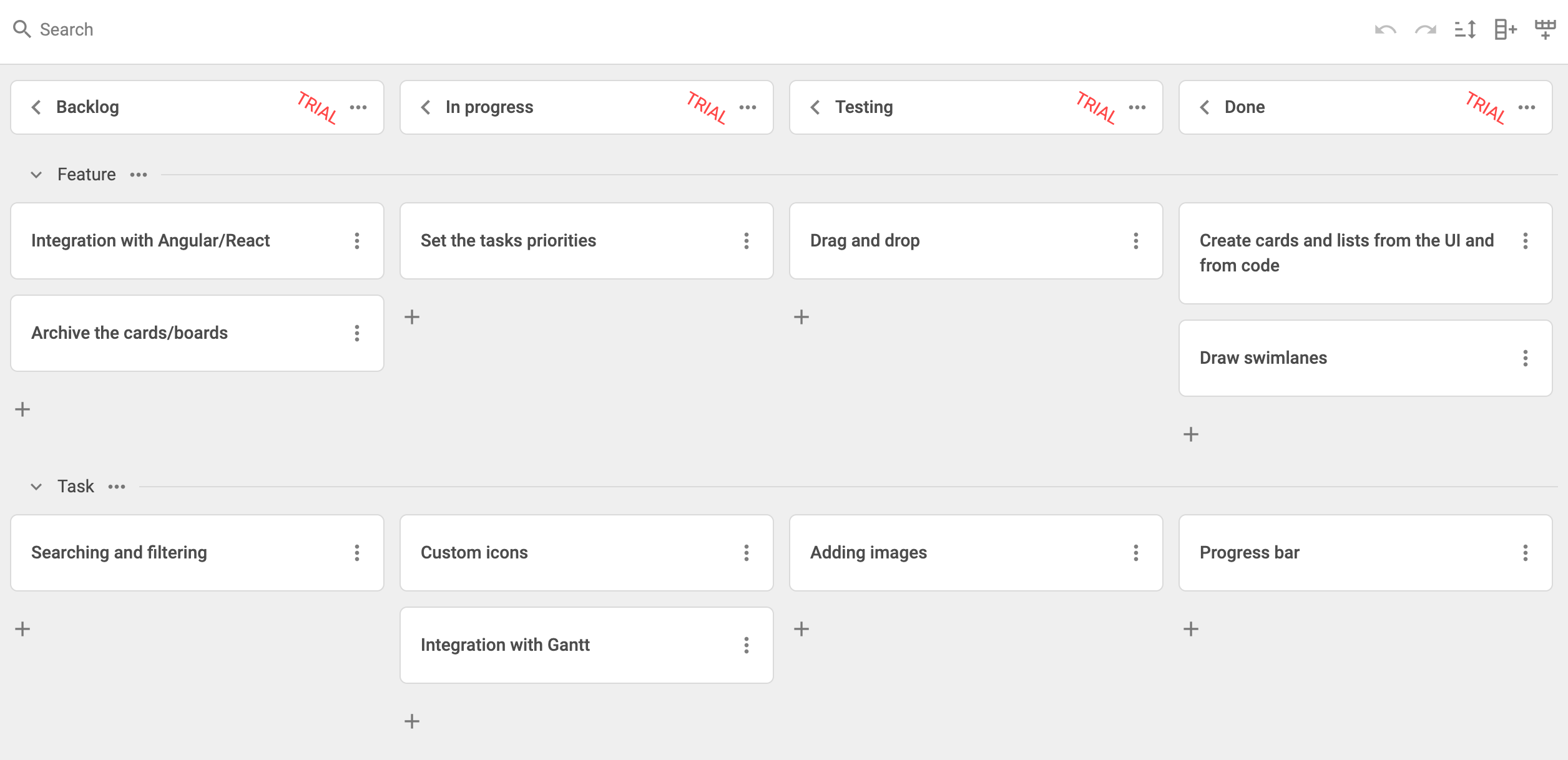
Run the app to view the populated Kanban board on the page.
See the complete project on GitHub.